
Vastaus

Huawei K562 Guest network creation

  • October 17, 2024
  • 5 kommenttia
  • 358 katselukerrat

I have a question regarding the setting up of a guest network on a newly purchased Huawei K562 router through Elisa. Is there some instructions on how to setup a guest network where I can place IoT devices eg air heat pump, fridge, TV etc on a separate network from my home network but still get access myself but not leave them open to unauthorized acess.

Vastauksen tähän kysymykseen jakoi Snouppi

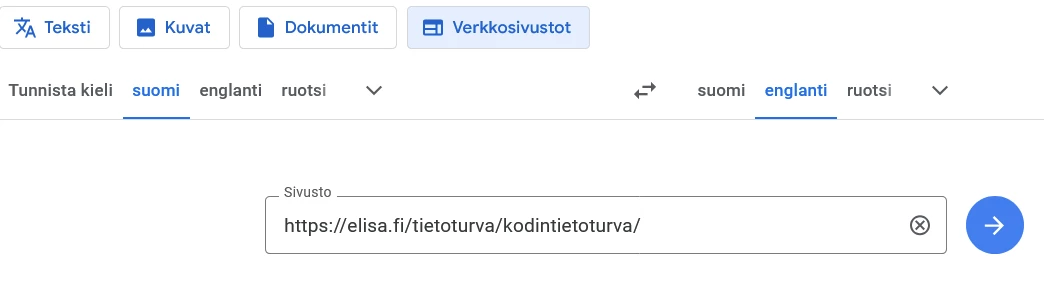
Elisa Home Security is the only Finnish solution that centrally protects all the devices connected to your home network. Powered by technology from Finnish company F-Secure, this service is always active when using your home’s local network. No installation is required, as the security software is pre-installed directly on the router. Easily manage your network security via a mobile app and set safe internet usage limits for children with family rules.

Unfortunately the site is only available in Finnish, but I suggest that you contact our customer service regarding this matter!

5 kommenttia

Snouppi
Elisalainen
Forum|alt.badge.img+17
  • Elisalainen
  • October 18, 2024

I checked the quick guide, but there was no mention of a guest network. I don't have that specific device myself, but after a bit of research, it seems that the device doesn't support creating a guest network. Does anyone here have the device and could double-check this? Also, welcome to OmaYhteisö @DavidA! 👌


  • October 19, 2024

Here are a couple of guidelines:

https://www.google.com/search?client=firefox-b-d&q=huawei+router+quest+network

And:

Connect to router management page.

Open a browser and enter the address of the router in the address bar.
 Log in to the router management page using your login credentials. If you don't know the IDs, they can usually be found on the bottom of the router or in the user manual.

2. Find the Guest Network settings

After logging in, find the "Guest Network" setting in the menu.
 This can usually be found under Wi-Fi Settings.

3. Enable guest network

Activate the Enable Guest Network.
 You can create a separate name (SSID) for the guest network, for example, "Guest network" or "Guest Wi-Fi".

4. Set a password

Set a strong password for the guest network.
 Make sure you use WPA2 or WPA3 encryption, which provides good security.


  • Keskustelun aloittaja
  • Tulokas
  • October 19, 2024

Thank you for your reply. I also could not see any mention of a guest network setting. 

Looking forward to any other advice on how to secure my IoT devices, if that's possible.

Thanking you all.


Snouppi
Elisalainen
Forum|alt.badge.img+17
  • Elisalainen
  • Vastaus
  • October 21, 2024

Elisa Home Security is the only Finnish solution that centrally protects all the devices connected to your home network. Powered by technology from Finnish company F-Secure, this service is always active when using your home’s local network. No installation is required, as the security software is pre-installed directly on the router. Easily manage your network security via a mobile app and set safe internet usage limits for children with family rules.

Unfortunately the site is only available in Finnish, but I suggest that you contact our customer service regarding this matter!


  • October 21, 2024